UI basics for programmers
You don’t need to be a designer to make an interface that looks professional. Most visual problems programmers face come from a few poorly applied concepts — and those concepts can be learned.
The goal of this post: to give you the vocabulary and practical rules that cover 80% of cases. It’s not a design course — it’s enough for you to stop making ugly interfaces without knowing why.
Colors
Palette: less is more
A well-built palette usually has:
- 1 primary color — identity, buttons, links, highlights
- 1 background color — usually neutral (white, light gray, near-black)
- 1 text color — never pure black (
#000), prefer something like#1a1a1aor#111 - Shades derived from the primary — lighter/darker versions for hover, disabled, backgrounds
Avoid inventing a new color for every situation. The more variations, the harder it gets to maintain consistency.
HSL is more intuitive than HEX
For manipulating colors in code, HSL (Hue, Saturation, Lightness) is much more intuitive than HEX:
/* HEX — hard to adjust mentally */
color: #3b82f6;

/* HSL — easy to derive shades */
color: hsl(217, 91%, 60%);       /* primary */
color: hsl(217, 91%, 45%);       /* darker (hover) */
color: hsl(217, 91%, 95%);       /* near-white (background) */
Same hue (217), only the L (lightness) changes. Easy to maintain a cohesive color family.
Color theory
The color wheel
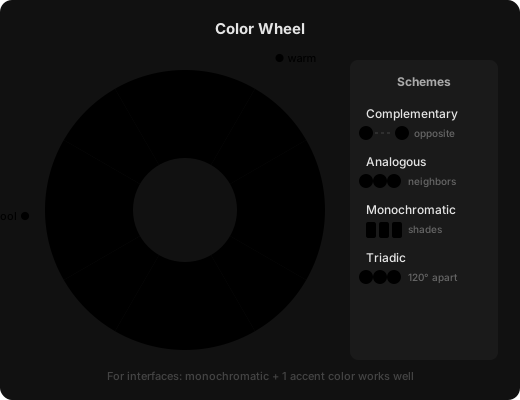
The color wheel organizes colors by their relationships to each other. The most commonly used combinations:
| Scheme | How it works | Conveys |
|---|---|---|
| Complementary | Opposite colors on the wheel (e.g.: blue + orange) | Contrast, energy |
| Analogous | Neighboring colors (e.g.: blue + blue-green) | Harmony, softness |
| Monochromatic | Shades of the same hue | Elegance, sophistication |
| Triadic | 3 equidistant colors | Vibrancy, diversity |
For most interfaces, monochromatic + 1 accent color already works well.
Temperature
Colors have temperature, and it affects perception:
- Warm (red, orange, yellow) — urgency, energy, attention. Good for alerts and CTAs.
- Cool (blue, green, purple) — calm, trust, professionalism. Dominant in fintechs and SaaS.
- Neutral (gray, beige, white) — a base, they don’t compete with the content.
Typography
Font types
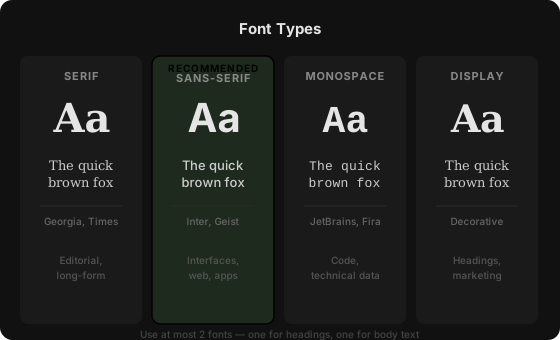
| Type | Characteristics | When to use |
|---|---|---|
| Serif | Has serifs (strokes at the ends) — e.g.: Georgia, Times | Long content, editorial |
| Sans-serif | No serifs — e.g.: Inter, Roboto, Geist | Interfaces, dashboards, the web in general |
| Monospace | Fixed width — e.g.: JetBrains Mono, Fira Code | Code, technical data |
| Display | Expressive, decorative | Impactful headlines, marketing |
For web interfaces, sans-serif is almost always the right choice. Inter and Geist are the most used in modern products.
Practical rules
Use at most 2 fonts. One for headings, one for body text. More than that, and the page starts looking like a magazine collage.
Font weight creates hierarchy without needing to change size:
/* Hierarchy through weight alone */
font-weight: 700;  /* heading */
font-weight: 500;  /* subheading */
font-weight: 400;  /* body */
font-weight: 300;  /* caption, metadata */
Line height for body text: between 1.5 and 1.7. Text that’s too compressed tires the eyes.
Letter spacing: large headings usually look better with slightly negative letter-spacing (-0.02em). Small text (labels, captions) with slightly positive spacing (0.05em).
Spacing
Grid system (8px base)
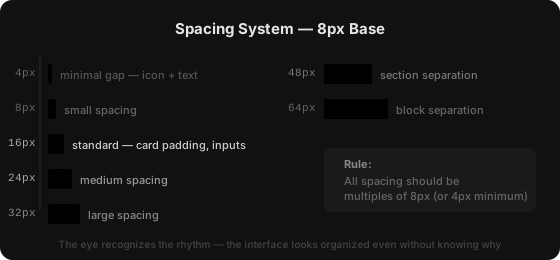
The simplest and most effective rule: use multiples of 8px for all spacing.
4px  — minimal gaps (between icon and text)
8px  — small spacing
16px — standard spacing
24px — medium spacing
32px — large spacing
48px — section separation
64px — separation of larger blocks
When all spacing follows this rhythm, the interface looks “organized” even if you don’t know exactly why — because the eye recognizes the pattern.
Whitespace isn’t wasted space
The most common beginner mistake is filling the screen with elements to “make use of the space”. Visual breathing room is intentional — it directs the eye, separates concepts, and reduces cognitive load.
If an element seems “lost”, it’s usually a lack of context around it — not too much space.
Visual hierarchy
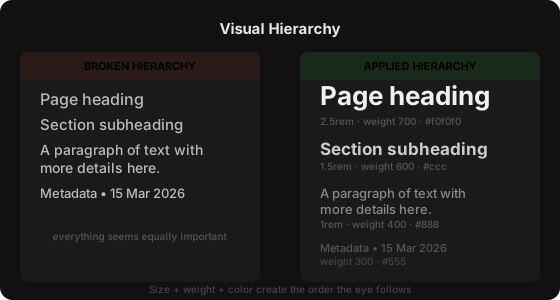
The eye scans the screen looking for order. Visual hierarchy is you defining that order.
The three main tools:
- Size — the largest draws attention first
- Weight (
font-weight) — bold stands out from normal text - Color — highlighted elements in the primary color, secondary ones in gray
/* Well-applied hierarchy */
h1 { font-size: 2.5rem; font-weight: 700; color: #111; }
h2 { font-size: 1.5rem; font-weight: 600; color: #333; }
p  { font-size: 1rem;   font-weight: 400; color: #555; }
If you look at your screen and everything seems equally important, the hierarchy is broken.
Contrast
Color contrast (WCAG)
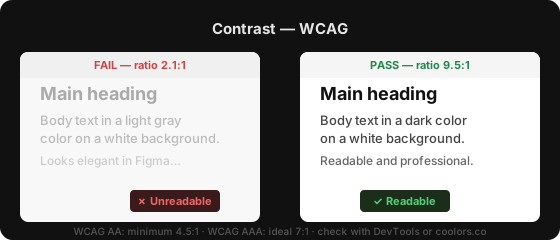
Text needs enough contrast with the background to be readable. The WCAG standard defines:
- AA (minimum): contrast ratio of 4.5:1 for normal text, 3:1 for large text
- AAA (ideal): contrast ratio of 7:1
Tools like coolors.co or the browser’s own DevTools check this automatically.
Common mistake: light gray text on a white background. Looks elegant in Figma, but is unreadable in practice.
Symmetry and Asymmetry
Symmetry — stability
Symmetrical grids convey order, trust, and professionalism. Dashboards, tables, cards in a grid — all benefit from symmetry.
[ Card ] [ Card ] [ Card ]
[ Card ] [ Card ] [ Card ]
Asymmetry — dynamism
Controlled asymmetry creates movement and guides the eye. Hero sections with text on one side and an image on the other are a classic example.
[ Heading and CTA   |  Image/Illustration ]
[ Subheading        |                    ]
Asymmetry works well when there’s an anchor element — something that visually balances the weight of both sides.
In practice
Most good interfaces mix the two: a symmetrical grid as the base, asymmetry at the points of emphasis. The grid provides order, asymmetry keeps it from becoming monotonous.
Consistency
The most underrated principle. An interface can have mediocre colors and reasonable typography — and still look professional if it’s consistent.
Consistency means:
- The same spacing used everywhere
- The same font weights for the same hierarchy levels
- The same border radii (
border-radius) on all cards - The same hover states on all interactive buttons
The practical tool for this is CSS variables (or design tokens):
:root {
  --color-primary: hsl(217, 91%, 60%);
  --color-text: #1a1a1a;
  --radius-md: 8px;
  --space-md: 16px;
}
When you need to change something, you change it in just one place. And when you create something new, you have a vocabulary to follow.
Where to start
If you want to apply all this at once, it can be difficult. A suggested order:
- Choose a palette of 3–4 colors and define CSS variables for them
- Choose 1 font, sans-serif, and define the sizes and weights you’ll use
- Adopt the 8px grid for all spacing
- Check contrast on the main texts
- Check hierarchy — is what’s most important visually larger/heavier?